
8.3 — Watching progress
On this page
8.3 — Watching progress
Once your coding agent is connected and the first AC has been claimed, the Track sub-tab is where you live. Three surfaces give you real-time visibility into what's happening, each at a different zoom level.
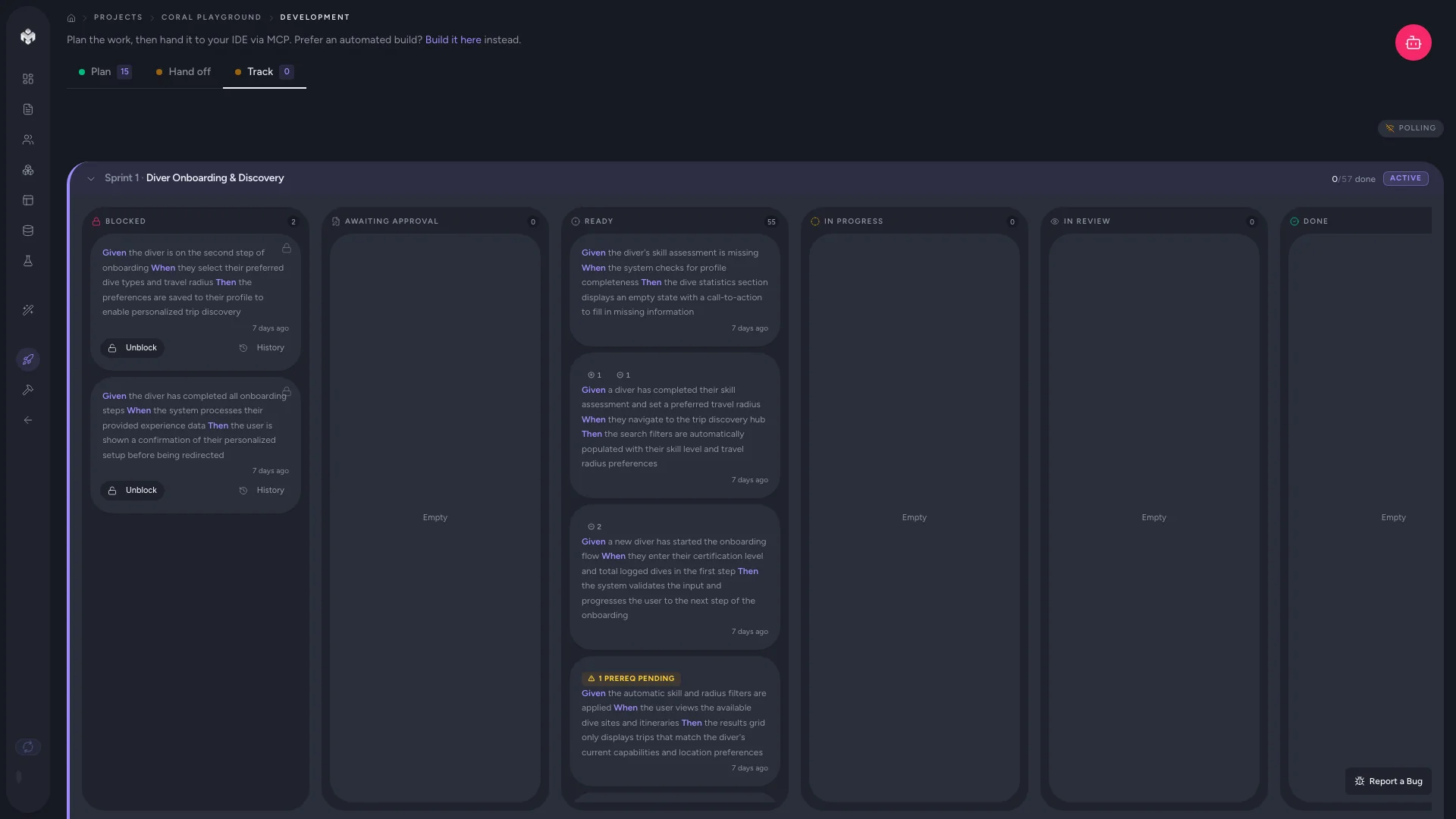
1. The kanban board (mid-zoom)
The board groups acceptance criteria into columns by status:
- Ready — claimable. Hard prereqs all passed.
- In Progress — claimed by an agent or user, work underway.
- In Review — submitted, waiting for human (or CI) approval.
- Passed — approved. Unblocks any AC that hard-depends on it.
- Failed / Blocked — needs attention.
Cards animate as their status changes, so even without polling for updates you'll see motion as your agent works. If you've planned sprints, the board groups cards into per-sprint sections above the unsprinted/Backlog group, with a Foundation section at the top for kind: "bootstrap" ACs (the scaffolding overlays you approved).
2. The Activity feed (narrative zoom)
Below the kanban there's a collapsible Activity panel. Click to expand. It shows a chronological feed of every kanban transition with a human-readable formatting:
Agent vm_a1b2c3 claimed User can sign up with email · 2m ago Agent vm_a1b2c3 submitted for review User can sign up with email · 18m ago You approved User can sign up with email · 19m ago
The feed polls the events endpoint every 5 seconds (and on demand via the refresh button in the panel header). When new events arrive while the feed is collapsed, an N new badge appears beside the header — click to expand and read.
Use the feed when you want:
- A timeline of one agent's session — scroll through to see the sequence of claims/submits/approvals.
- To spot blocked work — blocked events show as rose-colored rows with the "blocked" verb.
- To audit who did what — every row names the actor (You, Agent vm_xxxxx, CI, System).
The feed caps at the most recent 100 events to keep the DOM light. Older history is still in the database (kanban_events table) and queryable via the API.
3. The Readiness panel (high zoom)
The panel at the top of the Track tab — covered in 8.2 The Readiness checklist — also serves as your at-a-glance "is this still set up right?" reminder. If your API key gets revoked or your spec gets reset, the relevant check will flip from green back to amber.
Tips for unattended runs
VibeMap's MCP loop is designed to let your agent run for an hour or more without supervision. A few patterns that make this safer:
- Check in every 5–10 minutes, not after every AC. Approve in batches. The agent will keep moving as long as it has claimable work.
- Watch the Activity feed for stalls. If you see no new events for 5+ minutes during an active run, your agent has probably crashed, lost connection, or hit a problem worth investigating in its own logs.
- Use the Sprint Gantt as a rate gauge. The "passed/total Criteria" totals in the Gantt's bottom row update live — you can see the rate at which ACs are completing across sprints.
- Don't ignore the Backlog. If ACs are landing in Backlog instead of the planned sprints (visible at the bottom of the Track tab), it usually means the LLM hallucinated some slugs during planning. Re-plan, or accept it and drag them manually.
Why there's no "Pause / Resume" button
The coding agent runs in your IDE, not in VibeMap. We can't stop or start it from the web app. To pause a run, just tell your agent to stop in its chat or close the IDE. To resume, give the same "get next ready and implement" instruction again — claims persist, so a previously-claimed AC will still be reserved for you.
If you want stronger control, you can revoke the API key from the Account → Developer tab. Any subsequent MCP call fails authentication and the agent stops cleanly.