
4.1-generating-features
On this page
Generating Features
Feature generation transforms your project summary and personas into a structured list of functional requirements. Each feature represents a distinct piece of functionality your product needs, complete with priority, complexity, and business value assessments.
How Feature Generation Works
When you generate features, the AI analyzes two key inputs:
- Your project summary -- the functional scope, goals, and technical context
- Your personas -- the user types, their goals, and their pain points
From these inputs, the AI identifies the specific functionality needed and organizes it into logical categories. The result is a comprehensive feature list that covers your project's scope while staying grounded in real user needs.
Generation Process
- Navigate to the Features tab in the project sidebar
- Click the Generate Features button
- The AI breaks your project into logical feature categories and populates each one
- Real-time progress updates show the generation as it happens
- Once complete, features appear in the cards view by default
What Each Feature Includes
Every generated feature contains the following attributes:
| Attribute | Description |
|---|---|
| Name | A clear, descriptive title (e.g., "User Registration," "Product Search") |
| Description | A detailed explanation of what the feature does and why it exists |
| Category | A logical grouping (e.g., "Authentication," "Dashboard," "Payments") |
| Priority | High, Medium, or Low -- based on MVP necessity and user impact |
| Complexity | Simple, Medium, or Complex -- an estimate of technical difficulty |
| Effort | Story points representing estimated development time |
| Business Value | A 1-10 rating indicating the value to end users or the business |
The AI assigns these attributes based on the project context. High-priority features are those essential for your MVP or that address critical user pain points. Complexity reflects the technical difficulty inferred from the feature's requirements.
Feature Views
VibeMap provides four different ways to view and work with your features. Switch between them using the tabs above the feature list.
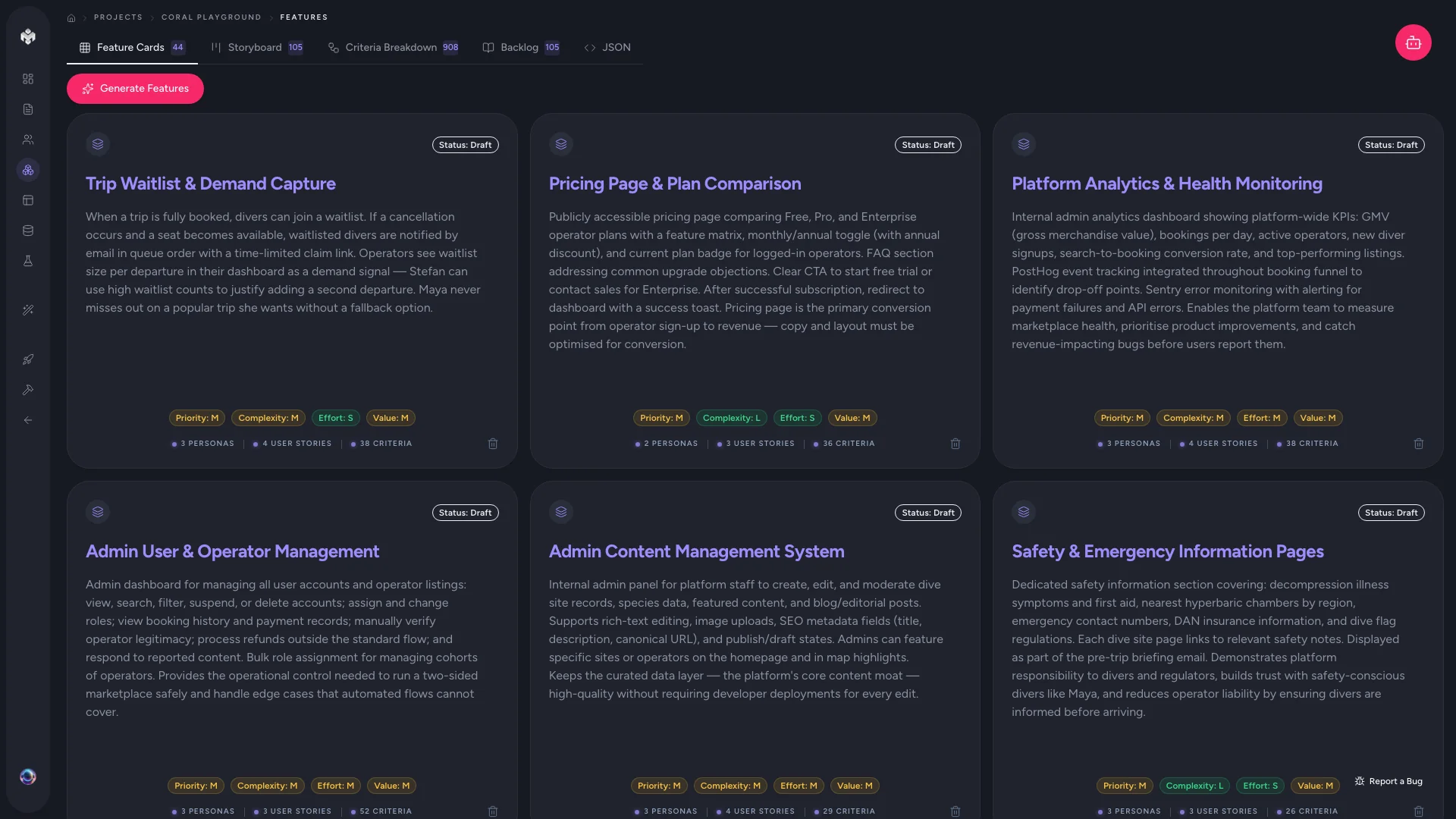
Cards View
The default view. Features are displayed as visual cards grouped by category. Best for getting a quick overview of your project's scope and scanning features at a high level.
Storyboard View
Connects features to their associated user stories, showing the narrative flow of how each persona interacts with each feature. This view is ideal for validating that every feature serves a real user need.
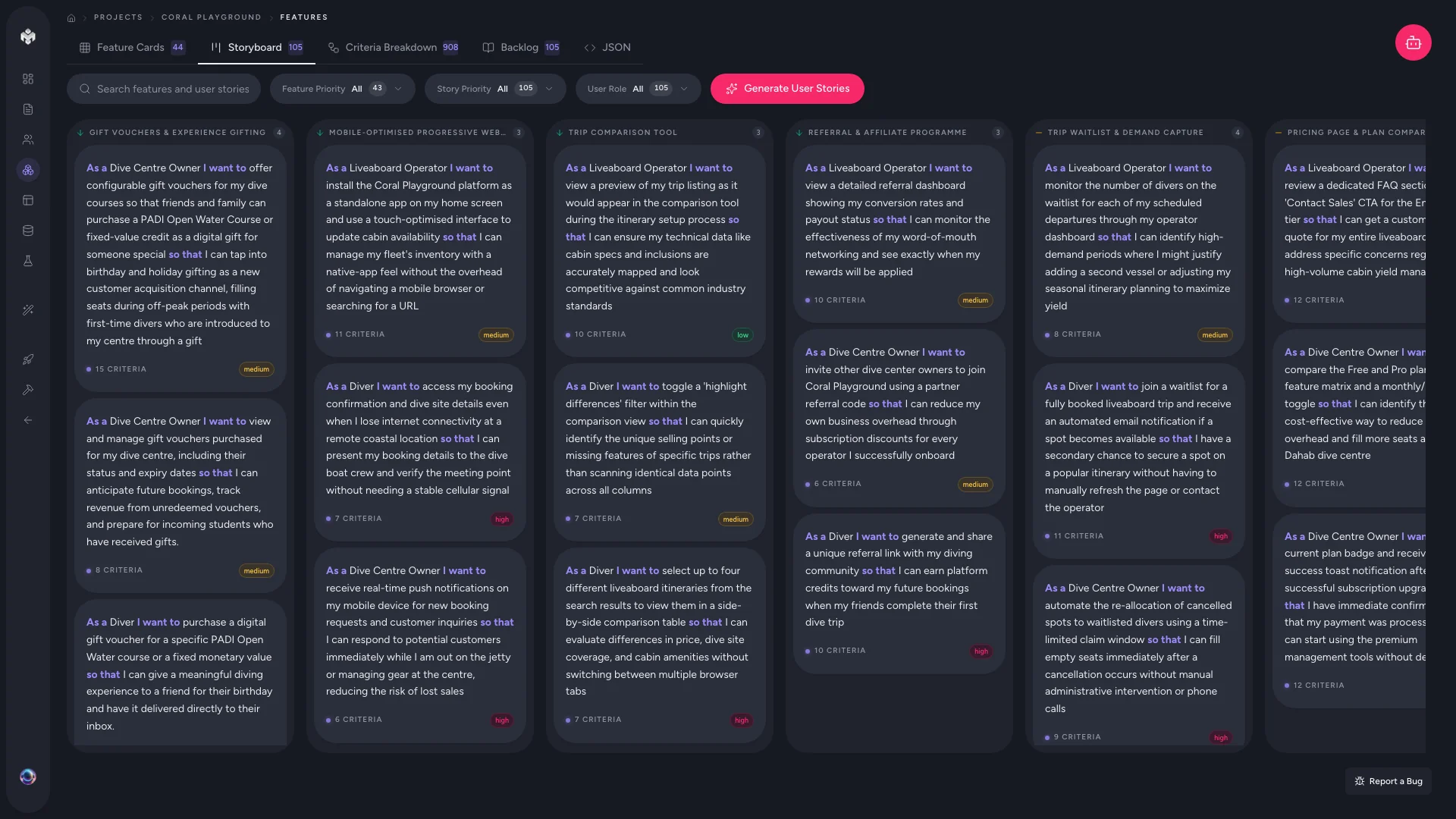
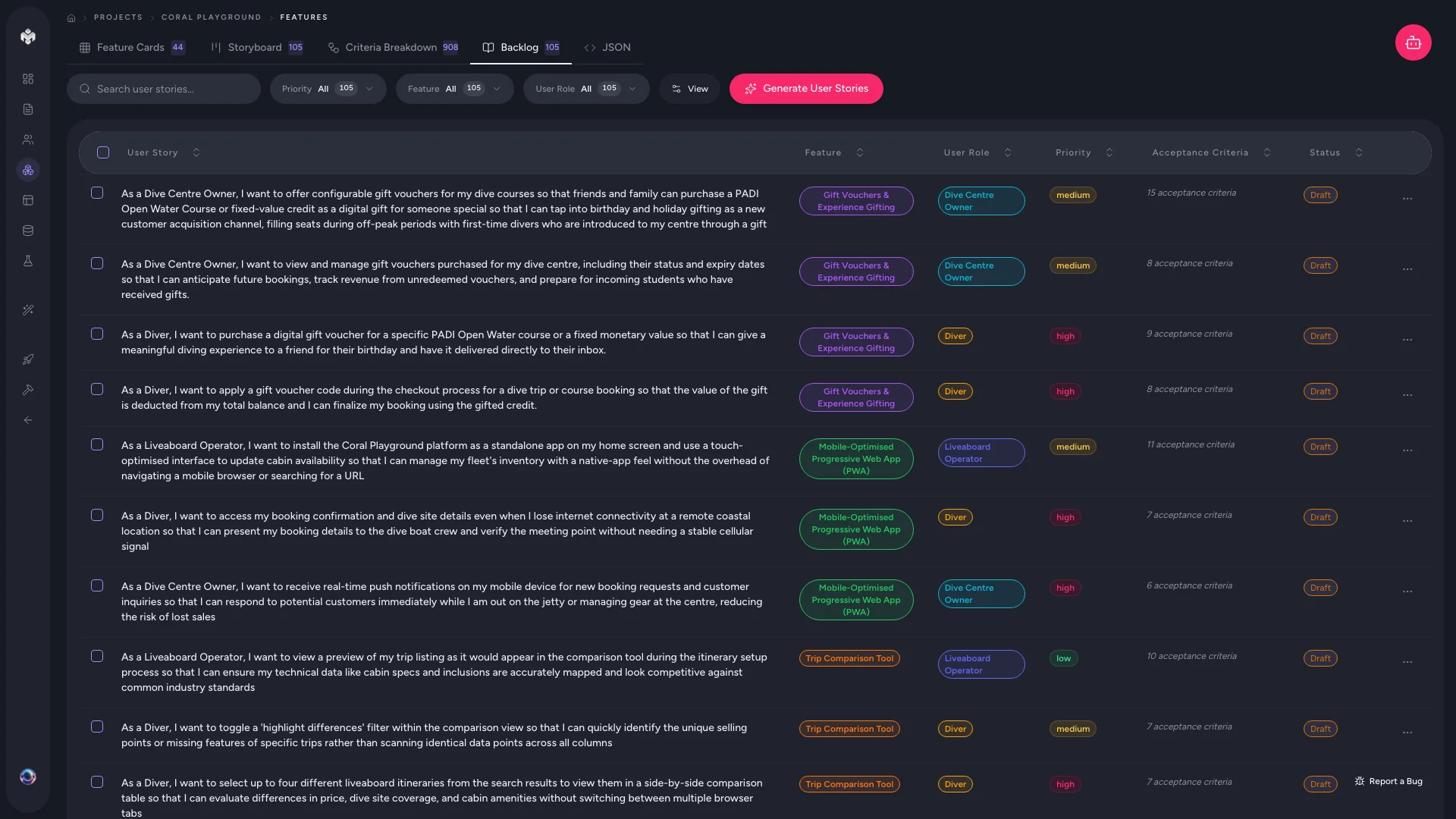
Table View
A sortable, filterable list of all features. Best for bulk management, editing, and technical review. Columns include name, description, category, priority, complexity, status, business value, and effort.
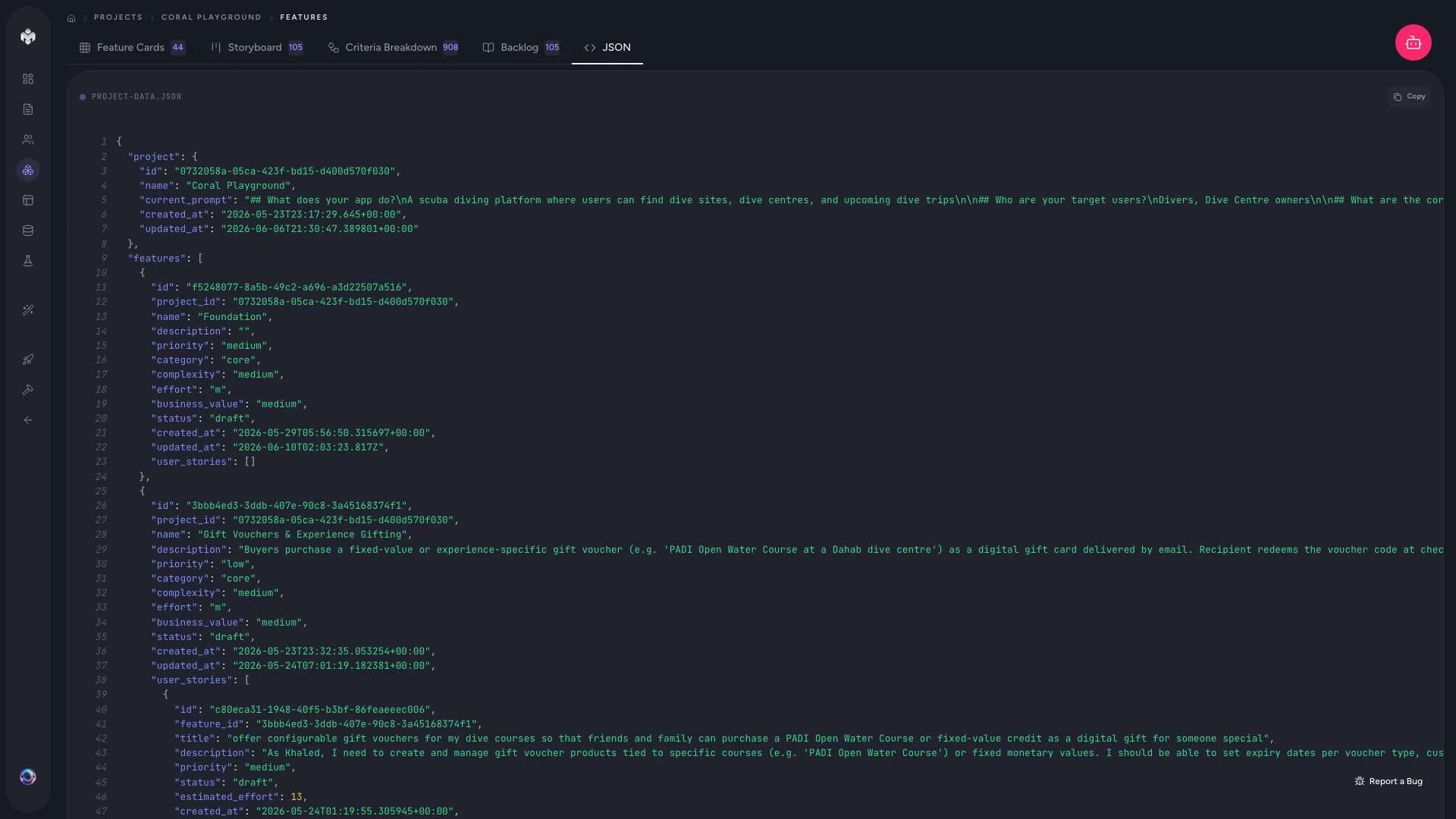
JSON View
A raw data view of your features in JSON format. Useful for developers who want to export or integrate the feature data with other tools.
Generating Additional Features
After the initial generation, you can expand your feature list in two ways:
- Generate more -- click the Generate button again. The AI will analyze your existing features and identify gaps or additional functionality it missed in the first pass.
- Add manually -- click Add Feature to create a custom feature. Fill in the name, description, and category, then optionally set priority, complexity, and business value.
Feature Categories
Features are automatically grouped into categories that reflect logical areas of your product. Common categories include:
- Authentication -- signup, login, password management, social auth
- User Management -- profiles, settings, roles, permissions
- Core Functionality -- the primary features unique to your product
- Dashboard -- analytics, reporting, activity feeds
- Payments -- billing, subscriptions, invoicing
- Notifications -- email, push, in-app alerts
- Admin -- moderation, content management, system settings
You can rename categories or reassign features to different categories as needed.
Priority Guidelines
When reviewing AI-assigned priorities, consider these guidelines:
- High -- essential for MVP, blocks other features, or addresses a critical user pain point
- Medium -- important for the full experience but not required for initial launch
- Low -- nice-to-have enhancements, polish, or post-MVP additions
Editing and Deleting Features
- Edit -- click the edit icon on any feature to modify its attributes
- Delete -- remove individual features or use bulk selection in table view. Deleting a feature also removes its associated user stories and acceptance criteria
- Bulk actions -- use checkboxes in table view to update status or priority for multiple features at once
Next Steps
With features generated, the AI automatically creates user stories for each feature and acceptance criteria for each story. Explore these in the Storyboard and Criteria Breakdown views, or read on to learn more about each.