
6.1 — Generating the database schema
On this page
6.1 — Generating the database schema
VibeMap designs a complete database schema from your project's features and user stories. The AI identifies every data entity your application needs, defines columns and types, and maps the relationships between them. The result is a starting-point schema your AI coding agent (or you) can extend in your real database.
How schema generation works
- Navigate to the Schema tab in the project sidebar.
- Click Generate Schema.
- The AI analyzes your features, user stories, and acceptance criteria.
- It identifies data entities (users, projects, payments, etc.) and determines how they relate.
- A complete schema is generated, typically in 30–60 seconds.
The AI applies standard database design principles: sensible normalization, consistent naming conventions (snake_case), and automatic audit fields on every table.
What gets generated
Tables and columns
Each table includes:
- Primary key — UUID
idfield - Typed columns — text, integer, boolean, timestamp, jsonb, enum, etc., matched to each field's purpose
- Constraints —
NOT NULL,UNIQUE,CHECK, andDEFAULTvalues where appropriate - Audit fields —
created_atandupdated_attimestamps on every table
Relationships
The AI maps connections between tables:
- One-to-many — e.g., a user has many projects (foreign key on
projects.user_id) - Many-to-many — e.g., projects and tags linked through a junction table
- One-to-one — e.g., a user has one profile record
- Cascade rules —
ON DELETEandON UPDATEbehaviors set per relationship
Exploring your schema
VibeMap provides two primary views for working with the generated schema.
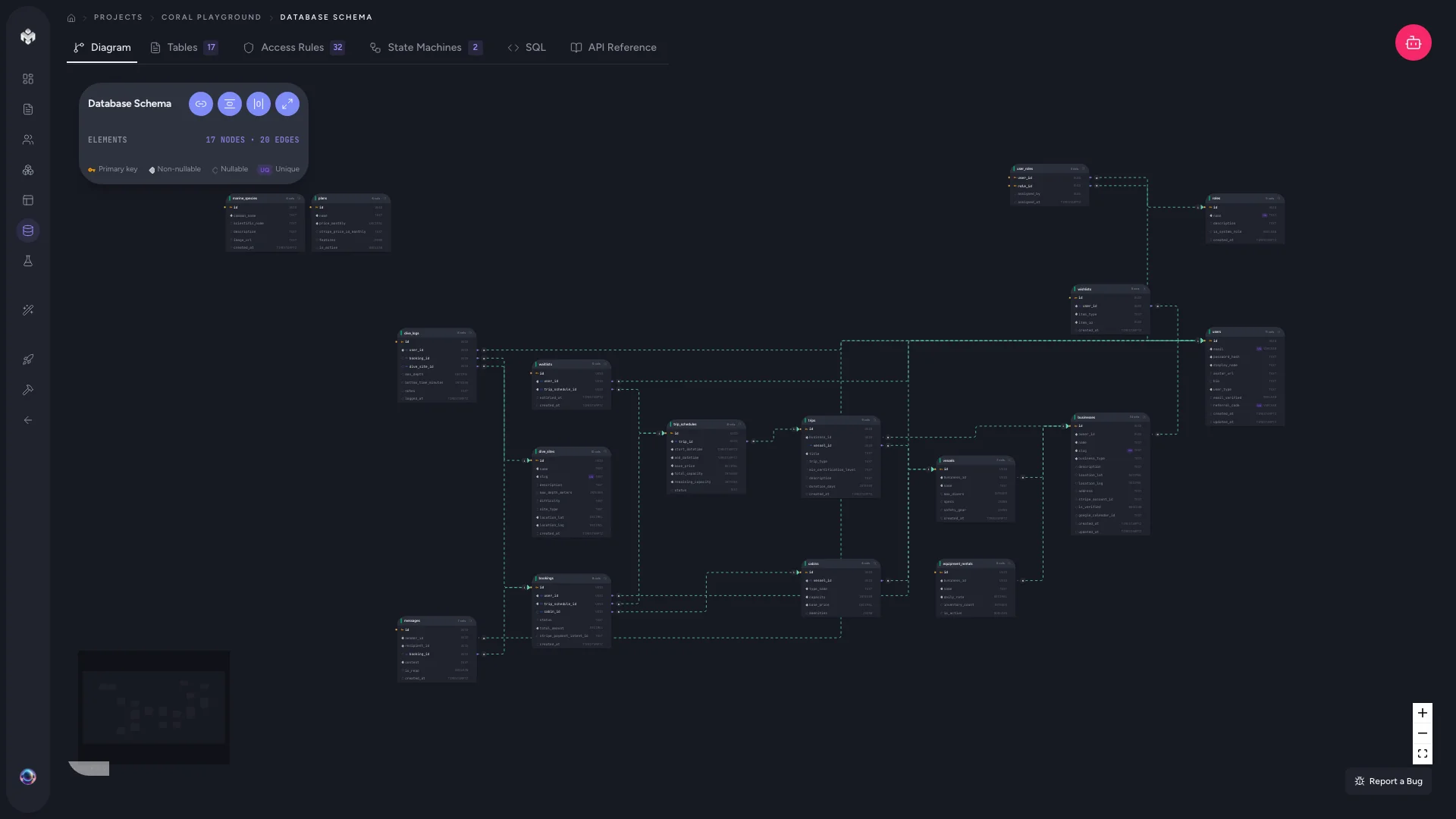
Diagram view
An interactive diagram that visualizes your entire data model.
- Table nodes show the table name and its columns
- Relationship lines connect foreign keys to their referenced tables
- Drag and zoom to organize the layout for large schemas
- Click a table to see full column details in the side panel
This is the best view for understanding how your data entities connect at a glance.
Tables view
A detailed, searchable list of every table and its columns.
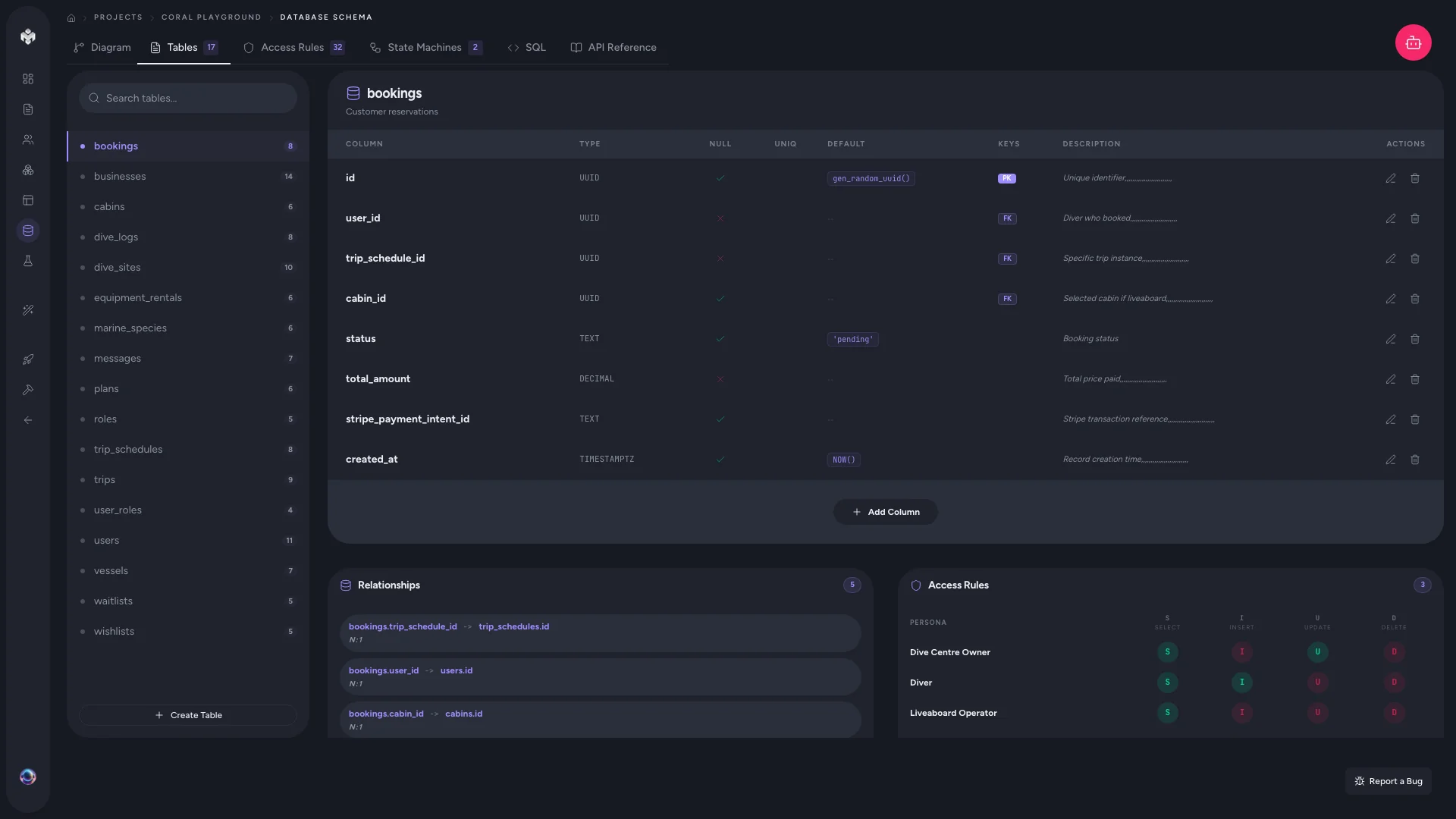
- Expand any table to see every column with its type, constraints, and default value
- Search and filter to find specific tables or column names
- Column metadata — nullable status, unique constraints, index presence
Use the tables view when you need to inspect or edit individual fields.
How the schema connects to your project
The schema doesn't exist in isolation — it traces directly back to your features:
- A feature like "Team Management" produces tables for
teams,team_members, andinvitations. - User stories under that feature define which columns each table needs (e.g., "As a team admin, I want to set member roles" adds a
rolecolumn toteam_members). - Pages that display or modify data reference these tables through their data dependencies.
If you regenerate features or add new user stories, regenerating the schema will incorporate those changes.
Tips
- Generate features and pages first. The more context the AI has, the more accurate the schema.
- Review relationships in the diagram view before moving forward — missing or incorrect foreign keys are easier to spot visually.
- Edit tables directly — you can add columns, rename fields, or adjust types without regenerating the entire schema.
- Treat it as a starting point. Once your AI coding agent picks up work via the MCP handoff, it can extend the schema in your real database. The generated schema is the v1 starting shape, not the final word.
Next steps
With your schema defined, proceed to the Conversational agent to refine your project, or return to Pages to adjust your UI.