
8.1 — Handoff to your AI agent
On this page
8.1 — Handoff to your AI agent
New to VibeMap? Read the end-to-end walkthrough first — it strings every step together in the order you'll do them, from blank project to first shipped AC. This page is the how of the handoff specifically; the walkthrough is the what comes when.
Once your spec is in good shape — features approved, user stories tied to personas, acceptance criteria written, pages outlined, schema reviewed — it's time to hand the work to your AI coding agent.
VibeMap doesn't try to be a code generator. Instead, it connects to your AI coding agent (Cursor, Claude Code, Windsurf, VS Code with Copilot or Continue) via the Model Context Protocol (MCP). Your agent reads the spec from VibeMap, picks the next ready acceptance criterion, implements it in your codebase, and submits the result. You (or your CI) approve, and the next AC unlocks.
📸 Placeholder:
20-handoff-overview.png— illustrated flow of "VibeMap spec → MCP server → IDE agent → your repo → review."
What replaces "export"?
Earlier versions of VibeMap had an Export tab that produced PRDs, technical docs, and starter code as ZIP downloads. That flow has been retired. The current path is:
| What you used to do | What to do now |
|---|---|
| Click Export → Code → get a ZIP of scaffolding | Connect your IDE agent via the MCP server. It reads the spec live and writes into your real repo. |
| Click Export → PRD → get a Markdown doc | Read the spec directly in the web app (the Summary tab is your living PRD). Or query it via the API. |
| Click Export → Tech Docs → get developer onboarding docs | Your AI agent reads the same spec via MCP. For deep technical references, see the developer docs. |
The handoff via MCP is bidirectional: your agent reads from VibeMap, and reports progress back. You see the work move across the kanban board in real time.
Three things to set up
1. Generate an API key
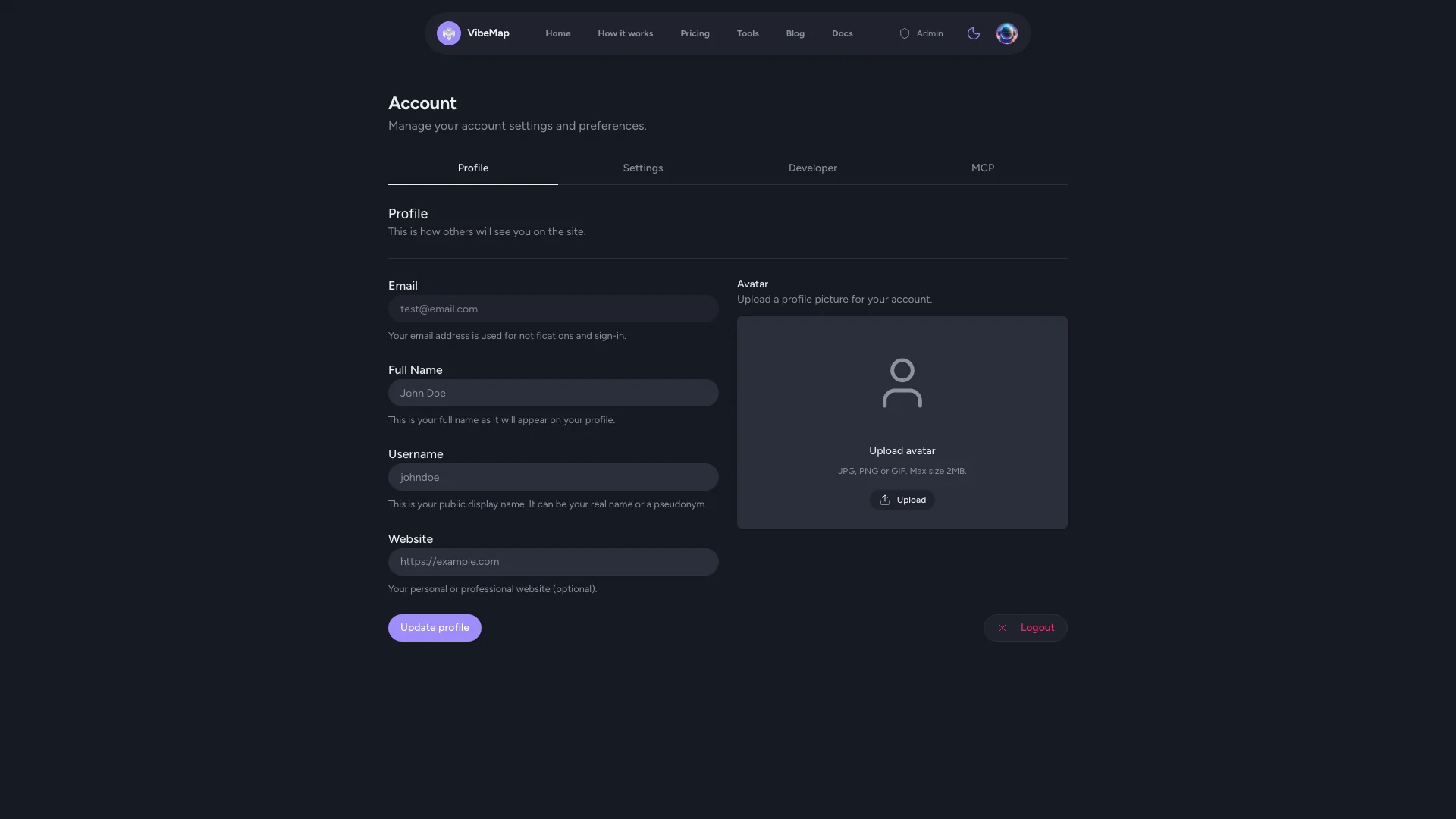
In the web app, click your avatar → Account → API Keys → Generate New Key. Copy it now — you won't be able to see it again.
2. Install the MCP server in your IDE
The MCP server is published as @vibemap.ai/mcp-server on npm. You install it by adding a small JSON block to your IDE's MCP config file. Full step-by-step for each IDE → Developer docs: Connect your AI coding agent.
The short version:
{
  "mcpServers": {
    "vibemap": {
      "command": "npx",
      "args": ["-y", "@vibemap.ai/mcp-server@latest"],
      "env": {
        "VIBEMAP_API_KEY": "vm_your_key_here"
      }
    }
  }
}
Restart your IDE and ask your agent: "List my VibeMap projects." If you see them, you're set.
3. Approve at least one acceptance criterion
Open the Development tab in your project. On the Review sub-tab, mark at least one acceptance criterion as approved. That's what makes it claimable by your agent.
Running your first work session
In your IDE, ask your agent something like:
"Use the VibeMap MCP server to get the next ready criterion for project X, then implement it."
Your agent will:
- Call
vibemap_get_next_ready_criterion. - Call
vibemap_claim_criterionso other sessions don't double up. - Implement the work in your codebase.
- Call
vibemap_submit_for_reviewwith a git SHA and a diff URL.
You watch this happen on the Track sub-tab of the Development tab — cards move from Ready → In Progress → In Review in real time.
Full day-to-day workflow → Developer docs: Kanban tracker user guide.
Sprint planning (Pro+)
If you're on the Pro tier, you can use the Plan sub-tab to group your acceptance criteria into themed sprints. Once a plan exists, your agent's queue is gated to the active sprint — it won't pull work from later sprints until the current one is complete.
Full guide → Developer docs: Plan & sprints user guide.
What if I just want the spec as a document?
A few legitimate use cases for "just give me the docs":
- Sharing the spec with a non-developer stakeholder. Send them a link to the Summary tab — it works as a public-feeling read-only view.
- Importing into Linear / Notion / Confluence. Use the REST API to pull features, user stories, and ACs and post them into your tool of choice.
- Backing up your spec. Query
/api/crud/projects/[id]/export(read-only JSON dump of the full project) — covered in the developer docs.
Where to go next
- Confirm you're set up correctly → 8.2 The Readiness checklist — the single-pane "ready / not ready" view on the Track tab.
- Watch your agent work → 8.3 Watching progress — kanban, sprint sections, and the Activity feed.
- Hit a snag? → 8.4 Troubleshooting — common agent integration issues and fixes.
- Connect your IDE agent (5-minute setup) → Developer docs: 1.4 Connect your AI coding agent
- Day-to-day workflow → Developer docs: 6 Kanban tracker
- Plan sprints (Pro+) → Developer docs: 7 Plan & sprints
- Account & billing → 9 Account and billing