
Generating the database schema
On this page
Generating the database schema
A complete first-pass data model — tables, columns, types, and relationships — derived from your whole spec. · Required · Starter plan
Schema is the final Plan step, and it's deliberately last. VibeMap designs a full database from your features, stories, criteria, and pages: every entity, its columns and types, and the relationships between them. It's the v1 shape your coding agent extends in your real database, not the final word — but it's a required part of a build-ready blueprint.
💡 Tip — generate pages first. Page layouts tell the schema generator what data each screen actually displays and edits, which produces noticeably more complete tables. You can generate schema earlier, but pages-first is the order the sidebar and journey strip suggest.
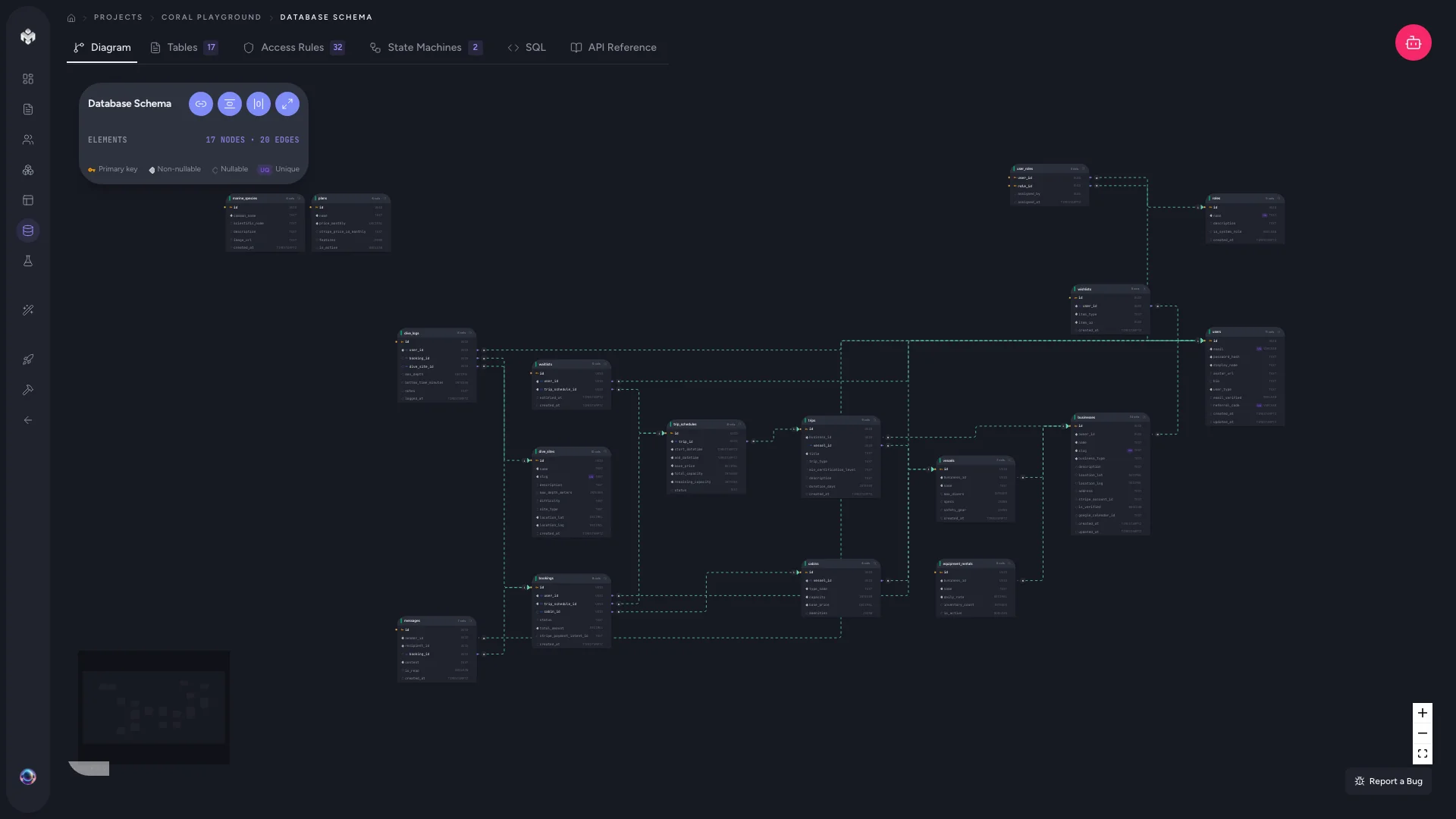 Figure: Schema diagram.
Generating your schema
- Open the Schema page from the project sidebar. (Code-first projects find it under Extract Specs.)
- Click Generate Schema.
- The AI reads your features, user stories, acceptance criteria, and pages, identifies the data entities, and works out how they relate.
- A complete schema appears, typically in 30–60 seconds.
VibeMap applies standard design principles: sensible normalisation, snake_case naming, a UUID id on every table, and created_at / updated_at audit fields. Columns are typed to purpose (text, integer, boolean, timestamp, jsonb, enum) with NOT NULL, UNIQUE, CHECK, and DEFAULT constraints where appropriate. Relationships cover one-to-many, many-to-many (via junction tables), one-to-one, and cascade (ON DELETE / ON UPDATE) rules.
Exploring the schema
The Schema page has six tabs along the top. The first two are the data model itself; the next two surface what Prepare for Dev derived about it; the last two are read-only exports.
| Tab | What it shows |
|---|---|
| Diagram | An interactive ReactFlow diagram. Table nodes list their columns, relationship lines connect foreign keys to their targets, and you can drag, zoom, and click a table for full detail. Best for grasping the whole model at a glance. |
| Tables | A searchable list of every table. Expand any one to inspect each column's type, constraints, nullability, and defaults. Best for inspecting or editing individual fields. |
| Access Rules | A table × role CRUD matrix — which persona role may create, read, update or delete each table. Cells are toggleable, so this is where you correct what the permissions pipeline inferred. Personas sharing a role are collapsed into one column. |
| State Machines | For every status-shaped field, the states it moves through and the transitions between them, drawn as a sequence diagram (with a Graph view a toggle away). Produced by the state-machines pipeline. |
| SQL | The whole schema as CREATE TABLE DDL — columns, constraints, foreign keys, indexes and comments. |
| API Reference | A generated REST reference for the model: per table, its TypeScript interface, relationships, access rules and CRUD endpoints with validation rules. Copy and Download sit in the top-right. |
💡 Tip: Access Rules and State Machines are filled in by the Prepare-for-Dev run, not by schema generation. Before that run they're empty — that's expected, not a fault.
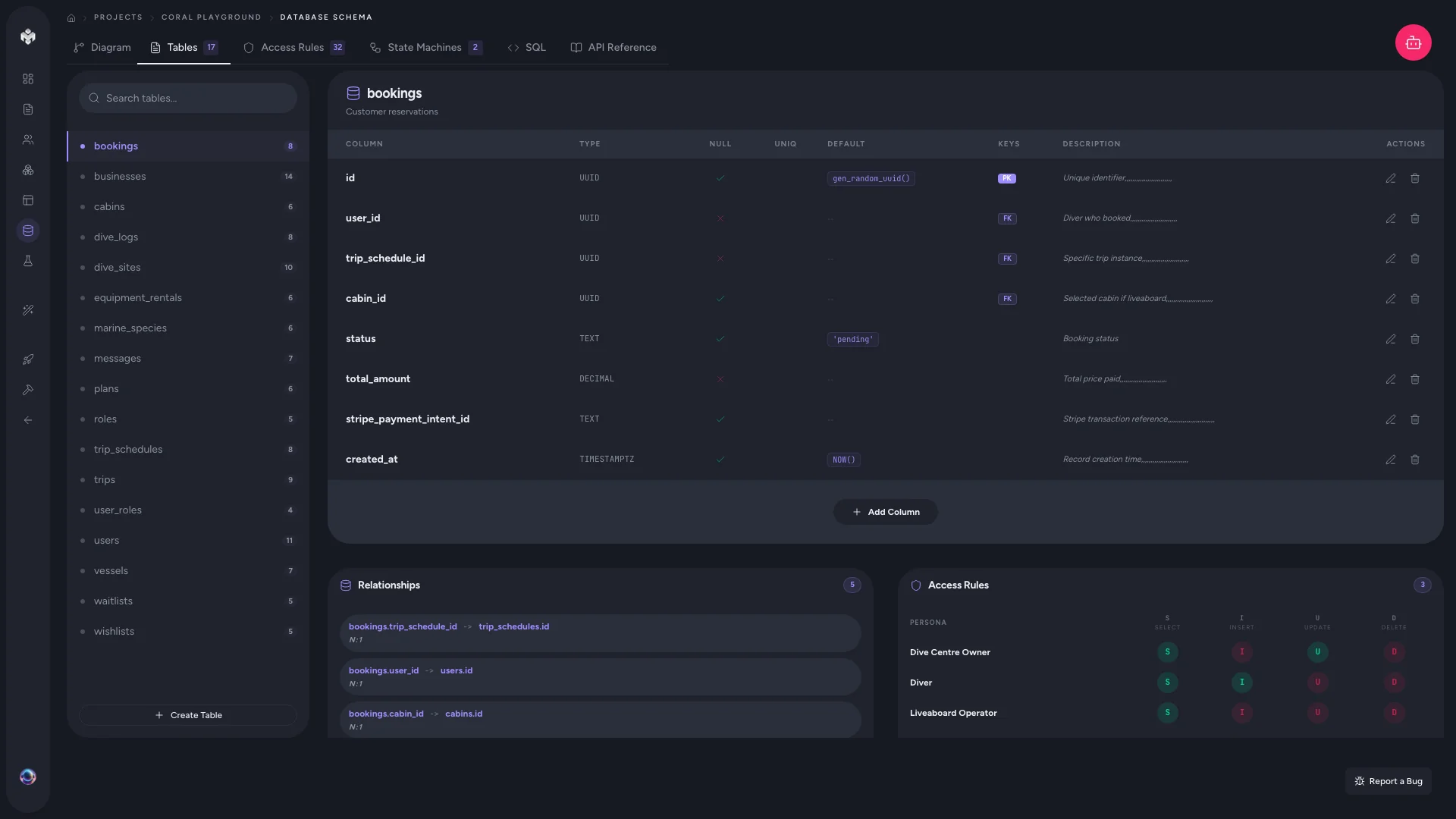 Figure: Schema tables view.
How the schema traces back
The schema isn't invented in isolation — it follows your spec. A "Team Management" feature produces teams, team_members, and invitations; a story like "As an admin, I want to set member roles" adds a role column; and pages that display or edit data reference these tables through their data dependencies. Change the spec upstream and a regeneration incorporates it.
Regenerating
The Regenerate button opens a dialog with two modes and an optional plain-language guidance field:
- Update existing schema (default) — compares your current schema against the spec and merges in what's missing (new tables, columns, relationships). Nothing outside the proposed changes is touched, so manual edits are preserved. The right choice after adding features.
- Regenerate from scratch — builds a fresh schema and replaces the current one. The swap is atomic: the old schema is only removed after the new one parses successfully, so a failed run never leaves you without a schema.
Use guidance to steer a run — e.g. "Add tables for the new notification feature" or "Split the settings JSON column into proper columns."
⚠️ Watch out: Schema generation and regeneration require a Starter plan or above. VibeMap selects the model that runs it automatically.
⚡ Power-user hints
- Review relationships in the Diagram view. Missing or wrong foreign keys are far easier to spot visually than in a column list.
- Edit tables directly. Add columns, rename fields, or change types inline without a full regenerate — then use Update existing to fold in later spec changes non-destructively.
- Treat it as a starting point. Your coding agent extends the schema in your real database via the MCP handoff; this is the v1 shape, not a migration.
Author with your own agent (MCP)
Instead of clicking Generate Schema, a connected IDE agent can design the data model on its own tokens — schema keeps its own dedicated, run-last command (author_schema) rather than riding the one-pass run. Starter is still the floor either way: the gate is on the capability, not the engine.
Full detail: Two ways to generate.
↔ The traditional way
A backend engineer or architect normally drafts the ERD by hand, translating the PRD into tables and foreign keys and revising it every time requirements shift. VibeMap derives the whole model from the spec — pages included — in under a minute, and re-derives it non-destructively when the spec changes, so the data model stops being the thing that lags behind the plan.
What's next
With the schema in place, your Plan phase is complete. Move on to:
- Refine anything by chatting → Conversational agent
- Package it for your coding agent → Prepare for Dev