
Prepare for Dev
On this page
Prepare for Dev
The step that turns a reviewed spec into a build-ready blueprint — and tells you whether your project is actually done. · Required · Pro plan
Once your spec is in shape — features, user stories, acceptance criteria, pages, and schema — Prepare for Development is where you make it buildable. It runs the deep analysis a coding agent needs and gives you a single, honest "ready to build" signal. Do this before you hand off or build in-app.
What Prepare does
Open the Prepare for Dev page from the project sidebar. It's a single, map-centric workspace that reads top to bottom:
- The Prepare for Development control (an animated empty state before your first run; a compact status + regenerate view after).
- Status banners — the green ready to build banner, or an amber banner counting either your blocking findings or your flagged items.
- The Blueprint Preview Map — the constant review surface (full guide → The Blueprint Preview Map).
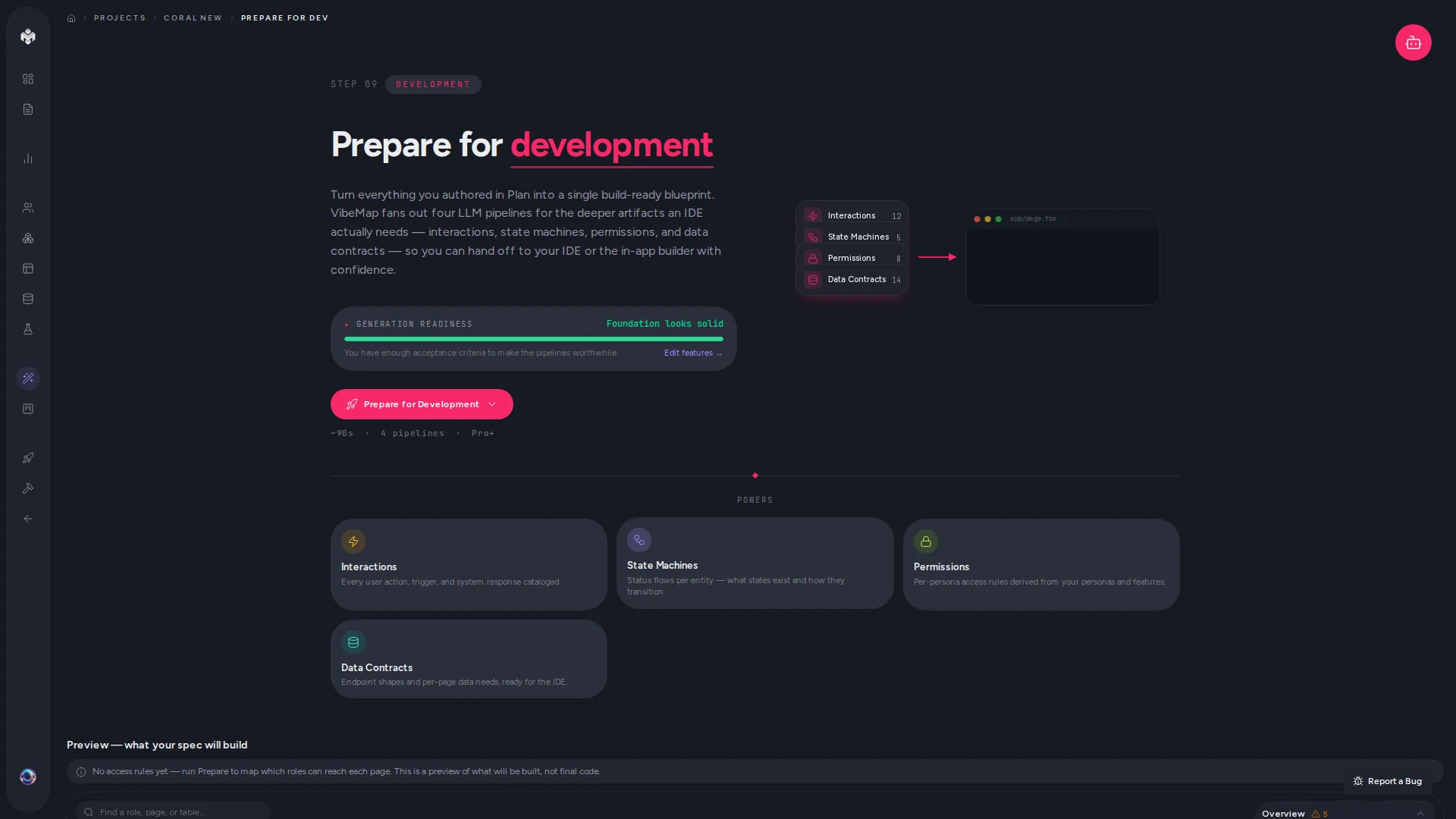 Figure: The Prepare page before a run.
Run Prepare for Development
Click Prepare for Development (Pro+). VibeMap first runs a spec-coverage pre-step that derives any missing acceptance criteria from your features and binds each page's empty / error / loading UI states to them. Then it fans out four analysis pipelines in parallel:
| Pipeline | What it works out | Where the results land |
|---|---|---|
| Interactions | Who does what, when, and what state it changes | Features |
| State machines | The valid states a field/entity moves through | Schema |
| Permissions | Which role can reach which page and action | Personas |
| Data contracts | The endpoints each page reads and writes | Pages |
Your Foundation stack (auth, payments, email, and so on) is derived automatically as part of the run — there's no separate proposal to approve. Live per-pipeline progress streams in the agent panel with a status dot and deep link for each pipeline.
💡 Tip: You don't pick the model for the run. VibeMap chooses it, and once size-based routing reaches your workspace it does so from the job's size, within your plan's ceiling. See How VibeMap picks a model.
The plan preview
Before a full run starts, VibeMap works out everything standing between your project and build-ready, and shows it to you on one screen, split in two:
- "I'll do this without asking" — the mechanical work. Access rules, data contracts, missing acceptance criteria, and anything else with one correct answer. You never click through these.
- "Then I'll ask you about" — the genuine decisions. Which of two pages owns a duplicate route, whether an unused table is a missing screen or dead weight.
The second list is counted in decisions, not findings. One decision covers every item like it, so a project with forty stories missing criteria is one line, not forty.
The button's own label carries the same number — "Prepare for Development · 3 decisions" — so you know what a run will cost your attention before you open anything.
💡 Tip: If VibeMap couldn't check part of your spec, the preview says so. An empty list from a failed check is not a clean bill of health.
Follow-up fixes run themselves
Once the four pipelines finish, VibeMap keeps going. It works out what is still outstanding, takes everything with one correct answer — stories missing criteria, features missing stories, a schema that has fallen behind — and runs it, in dependency order, without asking. You do not click through it.
It works one layer at a time on purpose. Stories shape criteria, so generating both at once would produce criteria for stories that do not exist yet. After each layer it re-checks your spec, so anything the previous round resolved simply drops off the list.
The Follow-up fixes row in the progress card reports what happened, including the case that used to be invisible: if it ran generations and your findings count did not move, it says so rather than reporting a clean run.
Your decisions
Some things are not missing work — they are questions. Which of two pages owns
/settings? Is a table nothing reads a missing screen, or dead weight?
There is one button on this page, and it always shows the next thing to do:
| It says | Meaning |
|---|---|
| Prepare for Development | Work is outstanding. Opens the choice below. |
| Review N decisions | Only the questions VibeMap can't answer for you are left. |
| Start building | Nothing left. On to Develop. |
Guided or Auto-fix
Clicking Prepare for Development shows everything standing between you and build-ready, then offers two ways through it:
- Step through — walk each item in order, on the map, answering as you go. This gives the better spec, because it ends up carrying your answers rather than VibeMap's assumptions.
- Auto-fix everything — VibeMap runs all the mechanical work unattended and brings you the rest as suggestions.
Either way, nothing that needs a judgement call is ever applied without you. Auto-fix is faster, not more autonomous.
VibeMap does the work of answering the questions and leaves the answer to you. Click Review N decisions and you get one card per decision, with a concrete proposed change and the reasoning behind it:
- Apply writes the change through the same version-controlled path a manual edit takes, so it appears in your history and can be reverted.
- Edit it first. Every proposal with something worth arguing about is editable in place — a route is a text field, a link target is a picker. A suggestion that's 90% right should be a tweak, not a rejection, and you should never have to go and look up an id.
- Keep as is is remembered. The question does not come back — unless the thing you judged changes materially, in which case it is a genuinely new question and returns.
- Review individually opens the per-item list, with confident proposals already ticked. Apply all at the bottom approves every ticked suggestion across every card in one go.
Each suggestion carries a confidence badge — Confident, Worth a look, Best guess. That's there to tell you where to spend your attention, not to decide anything: only Confident ones start ticked, and nothing is applied without your click.
One card can cover many items. Eight unreachable pages that all want a link from your dashboard is one Apply all 8, not eight prompts. Where VibeMap has no safe answer, it says so instead of guessing, and those findings keep their link to where you would resolve them by hand.
⚠️ Watch out: proposals marked Best guess are exactly that. They arrive unticked, and they are worth opening before you apply them.
Handle flagged items
Some rows can't be resolved automatically (an interaction the model couldn't map cleanly, a permission edge case). These surface as an amber "N items need your review" banner. Click Review to open the flagged-items dialog and approve or clear each interaction and state-machine row.
If a pipeline fails, a Retry card appears that re-runs only the failed pipelines — already-completed work is preserved.
The Readiness panel
One panel on this page tells the whole readiness story: a Spec health score ring from 0 to 100, the ready / not-ready verdict, and a prioritised list of what's standing in the way — each finding linking straight to the thing that needs fixing. It's read-only; nothing in it changes your project.
The score starts at 100 and deducts across four dimensions:
| Dimension | What it measures | Effect on the score |
|---|---|---|
| Coverage | Features with no stories, stories with no criteria, pages with no story behind them, roles with no stories, a schema that's out of date | Deducts, weighted by how serious the gap is |
| Structural integrity | Broken references, unbound UI states, traceability gaps, topology warnings | Deducts by severity — errors cost more than warnings |
| Staleness | Stories and criteria whose parent changed after they were written — see Staleness and reconciliation | Deducts a little, capped low |
| Duplication | Near-duplicate features, stories, criteria, or tables | Nothing — informational only |
Two design decisions are worth knowing:
- Every dimension is capped, so no single category can drag your score to zero on its own. Twenty missing-criteria warnings won't hide a structural error.
- Duplication never deducts. Possible duplicates are flagged as information — they're often deliberate.
The ring is green at 80 or above, amber from 50, red below that. The panel lists the worst findings first (biggest deductions, duplicates last), showing the top six with a "+N more" if there are others.
⚠️ Watch out: the score and the build-readiness gate are not the same test. A high score doesn't mean you're ready to build — readiness is about blocking findings specifically. See below.
Are you ready to build?
"Ready to build" isn't one switch — it's three things being true at once. VibeMap surfaces the combined signal as a green banner on the Prepare for Dev page:
Your spec is signed off — coverage is clear and everything flagged is resolved.
| Check | Counts as done when |
|---|---|
| Blueprint generated | The Prepare-for-Development run has finished. (A run that ends with a failed pipeline still counts as finished — the retry card is your signal to re-run it.) |
| No blocking findings | The spec check finds zero blocking findings — and every check it runs completes. |
| Flagged items resolved | The amber banner is gone; every flagged row is approved or cleared. |
When all three hold, the green banner shows a Go to Develop button, which takes you to the Development board — where the ⓘ button beside the board's filters opens your handoff instructions.
Blocking vs. non-blocking findings
Every gap signal in the project — coverage, referential integrity, traceability, staleness, code drift — is computed into one list of findings, and only some of them stop you building. A finding blocks when a coding agent would build something broken or empty from it:
- A feature with no user stories, a story with no acceptance criteria, a page not backed by any user story, a role with no assigned stories, or a schema that's out of date with the spec.
- A referential-integrity error — a page whose data contract reads a table that doesn't exist, an interaction or state machine pointing at something that isn't there.
- A page with UI states (empty / error / loading) that no acceptance criterion covers: you've said that screen state will ship, and the builder has no requirements for it.
- An interaction with no acceptance criterion behind it.
- A hard dependency cycle between acceptance criteria — no criterion in the loop can ever become ready, so the build queue would stall forever.
Everything else is a warning you can proceed past: stale stories and criteria, pages whose criteria aren't all finished, a page with no access rule, a page nothing navigates to, a table no page uses, and code drift. Staleness in particular is a prompt to reconcile, not a defect — it never blocks. Read them; they don't hold the gate.
⚠️ Watch out: A check that fails to run also blocks. If one of the underlying checks errors, the report can't honestly say your spec is clear, so it refuses to claim ready-to-build. A green light that's green because a check didn't run is worse than a red one.
If the run has finished and nothing is flagged for review but blocking findings remain, you get an amber banner instead — "N blocking findings before this spec is build-ready — see the Overview panel on the map." That Overview panel sits in the top-right corner of the Blueprint Preview Map and groups every finding by kind, with Fix all on the groups VibeMap can generate its way out of, and Reconcile on the stale ones.
⚡ Power user: Nothing about the readiness signal is cached — the whole findings report is recomputed from your spec each time the page loads. Fix gaps elsewhere, reload Prepare for Dev, and the count moves.
⚡ Power-user hints
- Regenerate is incremental. After the first run the button becomes a compact status + regenerate control — re-running only re-derives what changed.
- Retry, don't restart. A single failed pipeline never forces a full re-run; use the retry card.
- Coverage lens on the map. The Blueprint Preview Map's coverage lens shows the same gaps the preflight flags, but visually — a red ring on a node is a gap you can jump straight to.
- Work the Overview panel, not the banner. The banner only counts; the map's Overview panel is where each group of findings gets fixed, reconciled, or clicked through to its editor.
↔ The traditional way
| By hand | With VibeMap |
|---|---|
| An architect writes an interaction/permissions matrix and a data-flow doc, then keeps them in sync with the spec by hand. | Four pipelines derive interactions, state machines, permissions, and data contracts from your spec in parallel, and re-derive on change. |
| A tech lead eyeballs the backlog and hopes it's complete before sprint zero. | One computed "ready to build" signal tells you exactly what's still missing, and which of it actually blocks. |
What's next
- See what will be built → The Blueprint Preview Map
- Keep the spec honest as it changes → Staleness and reconciliation
- Group the work into sprints → Sprint planning
- Hand off to your coding agent → Handoff overview